Starting the Application
Because SCADAConnect Desktop displays real-time information about your network that is gathered from sites in the field and stored on the central SCADAConnect server, you must be connected to the SCADAConnect database server in order to use the application.
To start SCADAConnect Desktop:
Note
The application may take several minutes to start because it loads the most recent tag values of all network objects. A progress bar is displayed while the application is loading.
From the Network Schematic
Click the  SCADAConnect Desktop icon on the Network Schematic toolbar to launch SCADAConnect Desktop from the Network Schematic. Or, right-click on any regulator or outlet and choose SCADA to open the SCADA screen for that site.
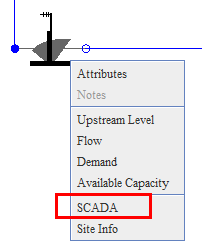
Select SCADA from the shortcut menu
From a browser:
Your network administrator will provide the address for the Rubicon Web Start page.
- In a web browser, type in the Web Start address in the address field.
- On the Web Start page, click on the link from the page.
From a desktop icon:
When you first launch the application from the Web Start page, it automatically creates a shortcut on your desktop and creates an entry in the Start Menu. You can then start the application from either of these shortcuts.