Changing a Party's Password
If a user forgets their password, they can request a new password using the forgotten password link on the login screen. If the user provides their login ID and an email address or phone number that is registered to that ID , a new password is generated automatically and sent to them. If a customer cannot remember their login ID, or their contact details have changed, they must contact you to have their password reset.
You can generate a new password in the Parties module. You must have the Reset password privilege over the customer's role in order to do this. See Working with Sub-Role Privileges for more information.
To change a user's password:
Check the user's login ID and account settings
- Ensure that the user has been set up with an account and log in credentials for the appropriate authentication group. If so, their account details are viewable on the accounts tab. If not, you will need to set up an account for them. See Creating and Configuring a New Party for more details.
- A user may fail to log in because they are using the wrong login ID. View the user's party record and confirm that they are using the correct ID.
Check the user's account status
If the user is still unable to log in, check their account status. If a user uses the wrong password too many times, their account will first be temporarily locked. If they continue to fail to log in, the account will eventually be disabled. You can clear the temporary lock, and enable their account on the Accounts tab.
You must have the Edit user accounts privilege over the customer's role in order to do this.
Note
A user account may have been deliberately disabled or locked by another administrator.
If an account is disabled, check the Authentication Log for that customer to see how the account was disabled. If the Enabled Set event has an associated Admin Party, then the account was manually disabled. See Sorting and Searching Log Events for more details.
If the account is System Locked, or was manually disabled, check with the person who made the change before resetting the account.
- Select the user in the Parties module.
- On the Accounts tab, click Edit to enable editing.
- Ensure that the Temporary Lockout option is NOT selected.
- Ensure that the Enabled option IS selected.
- Click Save to save your changes.
Generate a new password
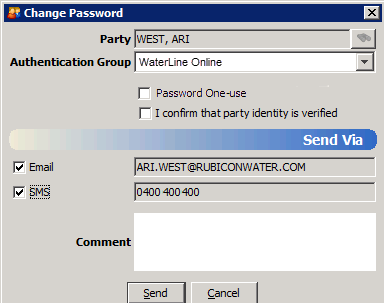
- From the Parties module menu, choose Action > Change Password to open the Change Password form.
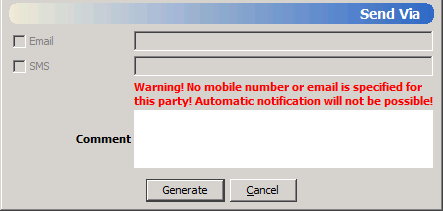
If the user does not have an email address or a mobile phone number, the form includes a warning in the Send Via section:
- (Optional) Set the Password One-use checkbox to force the user to change their password next time they log in.
- Make sure that the user is appropriately authorised to log in, and that they are using the correct login ID. When you have done this, tick the I confirm that party identity is verified check box.
- (Optional) Enter a comment. For example, enter a comment about how the user's identity was verified. This comment will be displayed in the authentication log for the password change.
- If the user has an email address or mobile phone number, click Sendto generate a password and send it directly to the user. They will receive an email stating, for example, "New <authentication group> password for <user>: AeNTi4186" but the password will not be displayed to you.
- If the user does not have contact details you cannot send the password, instead click Generate. The generated password is displayed on the screen. It will also be displayed if the message does not send correctly.
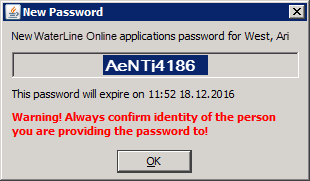
Contact the customer (for example, by phone) and tell them the new password. Click OK to close the New Password window.