Alarms
To view active alarms at a site, open the Site Details screen from the Site List and view the  Alarm tab, or swipe left on the Site List screen to show the site menu and tap the Alarm option.
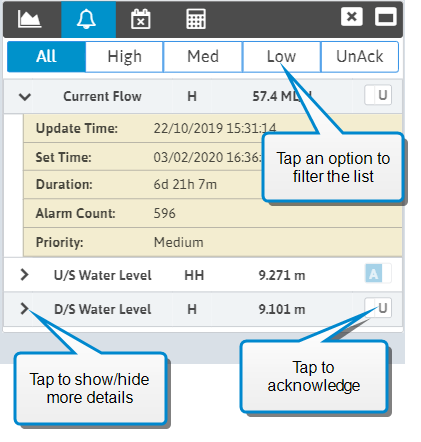
Filtering the Alarm List
Tap the filter buttons at the top of the alarm list to filter the alarm list. You can filter by alarm priority, or show only Acknowledged or Unacknowledged alarms.
Acknowledging Alarms
Note
You must have appropriate authority to acknowledge alarms.
The U/A (Unacknowledged/Acknowledged switch shows whether an alarm has been acknowledged. Tap the switch to acknowledge an unacknowledged alarm.
Once an alarm has been acknowledged it cannot be unacknowledged.
Alarm Properties
The following properties are shown by tapping on the alarm to show extended details.
| Property | Description |
|---|---|
| Tag Update Time | Time and date when the tag value was last read |
| Alarm Set Time | Time when the alarm was set |
| Duration | Length of time for which the tag stayed in an alarmed state |
| Alarm Ack Time | Time when the alarm was acknowledged |
| Alarm Ack By | User who has acknowledged the alarm |
| Alarm Count | Number of times that this tag has triggered an alarm. |
| Priority |
Alarm priority. Alarms are colour coded to show priority. This is an indicator of the alarm urgency.
|