Creating a Flow Restriction for a Water Restriction Group
Each water restriction group can be managed separately to supply different restriction levels per group. Any restrictions that you apply will last for the full duration of the plan day.
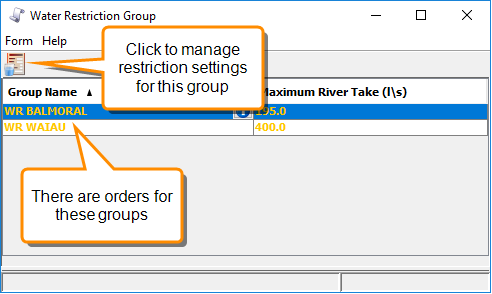
To start working with water restriction groups, click the  Water Restriction Group button on the Planning Schematic toolbar to open the Water Restriction Group screen. Groups that include orders that have not yet been restricted (or for which the restrictions have been removed) are shown in yellow text.
To create a new restriction for a group:
- In the Water Restriction Group screen, select a restriction group and click the Apply Restriction button.
The Flow Share screen opens with the details of any orders in that restriction group.
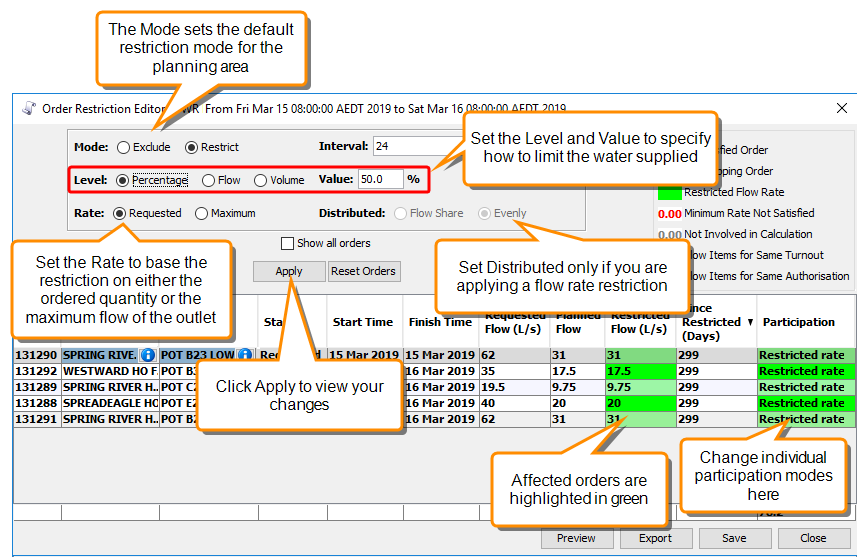
- In the Flow Share screen, enter the details of the proposed flow restriction. You can set the following properties or accept the default values:
Property Description Mode
Default participation mode for this restriction.
- If you are using a Restrict participation mode, available water is distributed according to the flow share of the property.
- If you are using an Exclude participation mode, orders are delivered in full until the water runs out, starting with properties that were most recently restricted.
You can change the participation mode for individual orders by clicking in the Participation column.
Interval
Length in hours of each interval during the restriction period for which flow restrictions are calculated. This is used for smoothing the restriction calculations.
The default value is 6 hours, so for a 24 hour flow restriction period there will be four independently calculated intervals. Setting a flow interval allows the restriction plan to be more responsive to changes in the order mix through the flow restriction period
Level and Value
The Level describes how the restriction rate is specified and you enter the value in the Value field. This only applies when the participation mode is Restrict.
- Percentage - specify a percentage that each customer will be supplied based on the setting of the Rate field. For example, if you choose the Requested rate, the water will be shared out based on the ordered quantity. If you choose the Maximum rate, the water will be shared out based on the maximum flow of the outlet.
- Flow - specify the total flow available during the restriction period. This will be shared out based on the settings you choose for the Distributed field and the Rate field.
- Volume - specify the total volume available to be shared out during the restriction period. This is shared out proportionally based on the setting you have chosen for the Rate field.
Rate
Specify whether the restriction is applied to the Requested rate - that is, the ordered quantity or on the Maximum rate - that is, the maximum flow rate of the outlet. This can be useful if you want to avoid restricting customers who have voluntarily chosen to order less than the maximum rate.
Distributed This controls how water is restricted if you have chosen Restrict mode and Flow level.
- Flow share - distribute the water based on the customer's flow share attribute.
- Evenly - distribute the water proportionally based on the ordered flow.
Show all orders Toggles the visibility of orders that do not occur on the plan day. - Click Apply to apply your selections or Reset Orders to remove the restrictions and return to the default settings. You can view a preview of the flow diagram of the restriction period by selecting Preview.
- When you are satisfied with the proposed changes for a restriction period, click Save at the bottom of the Flow Share screen to save the changes. When you return to the Water Restriction Groups screen, the group will no longer be displayed in yellow text.
You can now create flow restrictions for other Water Restriction Groups. When you have finished configuring restrictions, you must configure the stored water distribution for the restricted orders.