Editing Tag Values
Edit tag values one at a time. You can change or delete old values, and add new values from the Data Editor.
To edit tag values:
- Click
 Data Editor to open the Data Editor module.
 - Click
 Find Tags to open the tag chooser and select the tag whose data you want to edit.
- Leave the date fields blank to load all available values, or filter the data by entering a Start Date and/or an End Date, then click Find to load the available data.
- When the data has loaded, click Edit to start editing data.
Note
Changes are not finalized until you Save them and leave Edit mode. While you are in Edit mode, you can see both the original data and any changes you have made and you can cancel any or all changes.
Use
 Undo to cancel individual changes, and Cancel to cancel all changes.
You can make the following changes to the data:
Option Description  Modify
Select a value and click the modify icon, or double-click the value to edit the date and value of the data.
In Edit mode, the old value is highlighted in red, and the new value is highlighted in green.
 Delete
Select a value and click the delete icon. You will be asked to confirm the change.
In Edit mode, deleted values are highlighted in red.
 Add
AddAdd a new data value and provide a time and date.
In Edit mode, new values are highlighted in green.
UndoSelect a changed row and click Undo to cancel that particular change and stay in Edit mode. Use the Cancel button to cancel all changes and leave Edit mode.
Note
Changes are validated when you add or modify values. The Data Editor displays an error message if you attempt to enter invalid data.
- When you have finished editing, review the changes to the data. Data that will be changed is highlighted in the Data Editor.
- Values that will be changed or deleted are highlighted in red
- New or updated values are highlighted in green.
You can use the filters at the top right of the table view to show All values, New values or Old values.
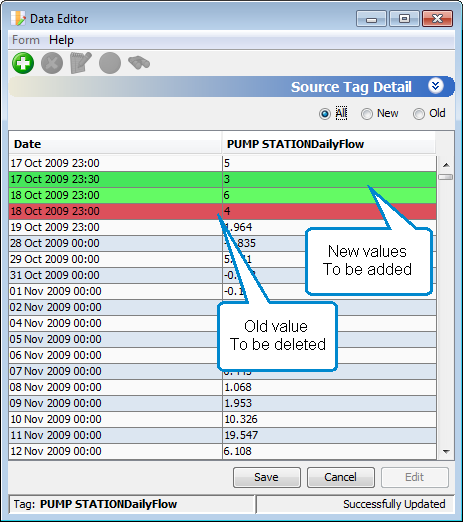
Example: Data Editor with unsaved changes to data
- When you are satisfied with your changes, click Save to apply your changes to the database.