Linking a Tag to a Site or RTU
Link a tag to a site or RTU so that the tag data is associated with the site or RTU object. This means that data for the tag can be displayed on screens for that object, or the tag can be identified with the object for creating alarms or for trending.
You can link tags one at a time, or select and link multiple tags. Tags must be linked to objects associated with the table where the tag is located. Only these objects are available to choose when creating the link.
Tags that are not currently linked to a site are highlighted in pink. (Note that this does not apply to tags on the System table.)
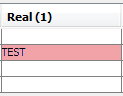
To link one or more tags to a site:
- In the Data Sources module, open the table that contains the tags.
- Select the tag or tags to link. Use the CTRL key to add individual tags to the selection, or use the SHIFT key to select a block of tags.
- Right-click and choose Assign Site. Select the appropriate object from the list.
Unlinking Tags from a Site
You must unlink any tags from a site before you disconnect the site from the network. To unlink a tag, select the tag as above, then right-click and choose Assign Site. Select None from the site options.